Community manager on-site
Needs a thumbnail fast to drop into Stories, a Discord update, or a sponsor approval thread. Speed matters more than perfect filing, but the image still needs to be clean enough to reuse later.

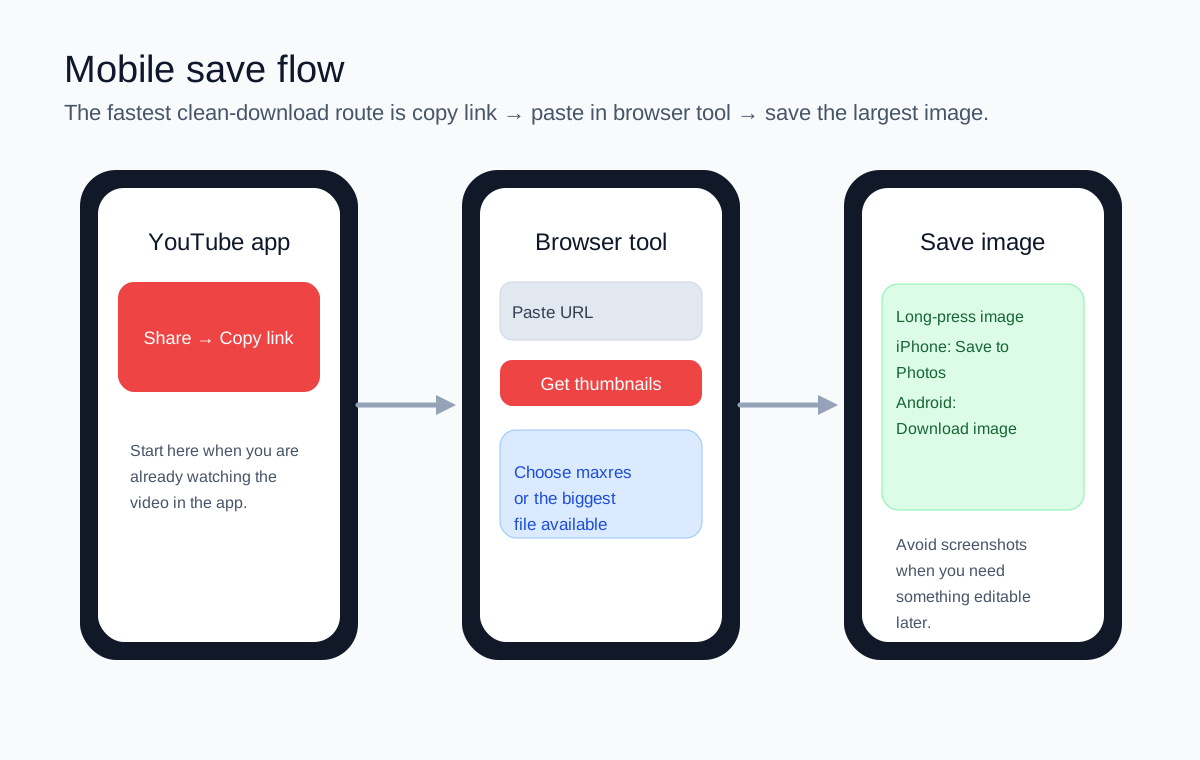
The best mobile workflow is not “open YouTube and long-press whatever you see.” The cleanest path is usually app to browser: copy the video link inside YouTube, paste it into a thumbnail tool, then save the largest public image. That avoids tiny preview images, accidental crops, and screenshots that are useless when you need to edit later.
| Task | iPhone / iPad | Android |
|---|---|---|
| Getting the link | Usually fastest through the YouTube share sheet | Usually fastest through the YouTube share sheet |
| Saving the image | Long-press or share into Photos depending on browser behavior | Long-press or use Download image into Downloads/Pictures |
| Most common failure | Saving a preview or not finding the file in Photos | Saving to Downloads and forgetting which folder the browser used |
| Best habit | Check the saved image dimensions before editing in another app | Rename or move the file if it is for a client or campaign |
YouTube’s thumbnail help page includes one especially important note for mobile-focused creators: vertical videos with 16:9 custom thumbnails can be replaced by an auto-generated 4:5 thumbnail on home, Explore, and subscription pages, while the custom thumbnail still appears on other surfaces. That is why the image you saved may not match every place users discover the Short. Official YouTube thumbnail guidance.
Needs a thumbnail fast to drop into Stories, a Discord update, or a sponsor approval thread. Speed matters more than perfect filing, but the image still needs to be clean enough to reuse later.
Often saves multiple thumbnails into a phone album for visual research. The real constraint is organization: rename or sort them immediately, or they disappear into the camera roll.
May need to verify how a new thumbnail looks after upload. Compare the public thumbnail file in the browser rather than trusting one cached app view.
After saving the image, open it once in your Photos or Files app and confirm it is the file you meant to keep. That simple check catches most “I only saved the preview” mistakes before you build a post or edit around the wrong asset.
If you are troubleshooting a thumbnail that still looks old on your phone after upload, go to the not updating guide.