YouTube Thumbnail Not Updating? Diagnose the Right Layer First
Written and reviewed by Alex Carter, founder and editor of TubeThumb Tools.
Alex tests the site’s browser-based tools, verifies guidance against official YouTube documentation where relevant, and updates articles when workflows or publishing policies change.
Reviewed and updated: March 20, 2026
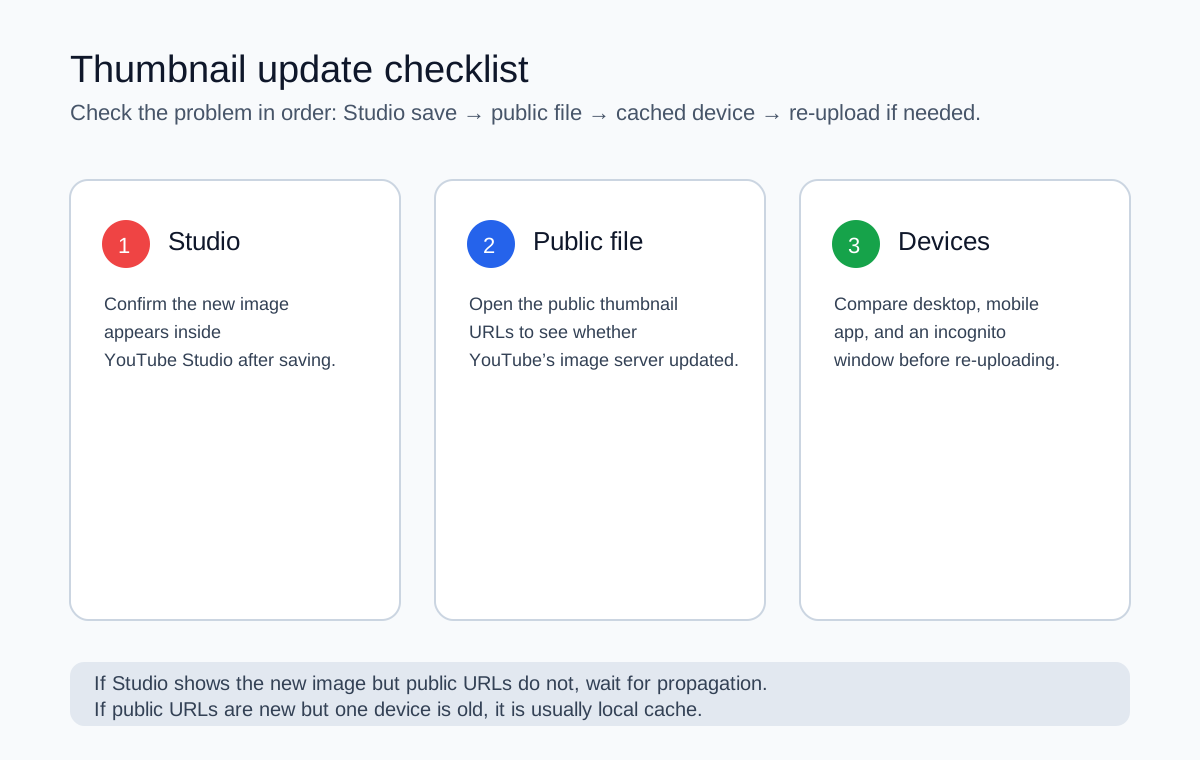
YouTube thumbnail problems feel random because several systems can disagree at once: Studio, the public thumbnail file, your browser cache, the mobile app cache, and different surfaces that show different crops. The fastest fix is to identify which layer is stale before you start re-uploading files.
Work from the source of truth outward: Studio → public file → device cache.
What YouTube officially confirms
YouTube’s own help page says it may take time for thumbnail changes to appear. That line matters because it means “still old” does not automatically mean “upload failed.” Official custom thumbnail help.
A real-world diagnostic sequence
Check
If the new thumbnail appears
If the old thumbnail remains
YouTube Studio
The upload probably saved correctly
Re-upload, confirm format and size, and save again
Public thumbnail URLs in the tool
The CDN likely updated; your device may be stale
Wait, then recheck before changing the file again
Incognito or another browser
Your primary browser cache is the issue
The public image may still be propagating
Phone app vs desktop
One client updated faster than another
Keep comparing public URLs instead of guessing from one app
Common failure modes and the best response
Studio shows the new image, but the watch page does not
This is the classic propagation delay. Use the main tool to inspect the public thumbnail files directly. If they still show the old asset, waiting is usually more productive than exporting ten slightly renamed copies.
Desktop updated, mobile did not
Treat that as a client cache issue until proven otherwise. Mobile apps can hang onto old images longer than a clean browser session.
Only one specific surface looks wrong
Remember that vertical videos can behave differently on discovery surfaces. YouTube explicitly says 16:9 custom thumbnails for vertical videos may be replaced by an auto-generated 4:5 thumbnail on home, Explore, and subscription pages. Official note.
You changed visibility and now the thumbnail behaves differently
Visibility changes can affect where the video appears and who can access it. Check the current setting in Studio instead of assuming the old public behavior still applies. Official privacy guide.
Re-upload checklist only when needed
Confirm the new image is within YouTube’s supported formats and upload limits.
Use a clearly different filename if you export a new revision.
Keep a version note in your project file so you can tell whether you truly changed the asset.
Wait after saving before testing multiple devices at once; otherwise you only create more contradictory signals.
How TubeThumb Tools helps in this specific problem
The point is not that the tool can “force” YouTube to update. It cannot. The point is that it gives you a fast way to inspect the public thumbnail files independently of the YouTube interface so you can tell whether the problem is on YouTube’s servers or on your device.
If your issue is really about how the image looks after it updates, the next stop is the thumbnail size guide.